
EDEN APP INSTALLATION
Best to be on WiFi as you install and set it up (depending on strength of your mobile network).
The Eden App won’t automatically appear on your Home Screen like a native app. It needs to be added to your Home Screen by following the instructions.
The app is a website on your phone (a web app). Your browser can cope with most actions but in some cases you’ll need to refresh screens by exiting the app and reopening, just as you would refresh a webpage to see updates. Web apps don't work quite as smoothly as native apps, but they're much cheaper to build and maintain since one version will work on both iOS and Android (and on any computer).
Once the app has been installed, in Menu > User Profile set the Active Parish to your parish, turn on email notifications, add your assigned patrol(s) and any equipment that you have. The hope is that councils will pay for equipment in the future and this will help them keep track of their assets.
Double check date and patrol before marking as “Complete” as you can’t change it if you’ve made a mistake - though I can change it in the backend.
Don’t mark a patrol as “Undoable” unless it really is - as you can’t change it back and it needs me to fix it.
Profile photos uploaded do not stay in place at the moment - We're working on this.
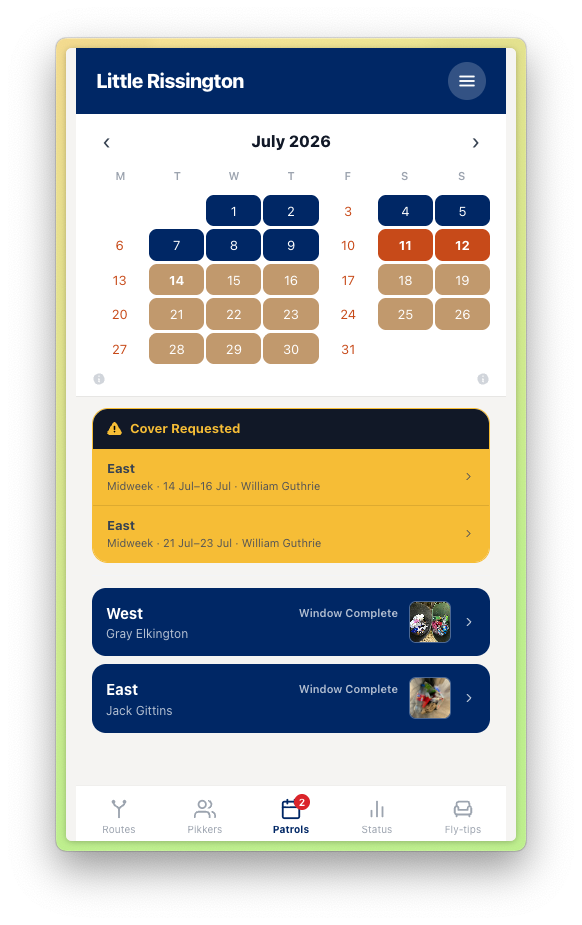
The Cover Request process is as follows:
• Regular pikker marks as “Cover Requested” in app, takes a screenshot and adds to WhatsApp group - no need for any other text as screenshot will show route/date.
• The person that is able to provide cover goes into app and assigns route to themselves and updates WhatsApp chat accordingly.